Quick Reference
Downloading Your PDF Blueprint & Updating Monthly Roadmap Bricks
Once you have successfully logged your accounts using the Setup Wizard, executing your plan requires only two core tasks: exporting your master paper blueprint and recording your monthly updates on the Live Roadmap.
Too many budgets fall flat due to manual calculation hurdles. LEVEL eliminates this friction by automating your payoff curves. By learning how to access your profile settings and log monthly payments, you protect yourself from plan fatigue and stay aligned with your long-term financial goals. Here is the operational checklist to manage your dashboard.
To update monthly payments: Click your profile image → select Launch Live Roadmap → click Review Payment on the active brick → click Mark Paid.
1. How to Export Your Master PDF Schedule
Having a physical reference is a powerful psychological tool. LEVEL lets you export your entire month-by-month repayment schedule as a premium printable document:
Access Profile Dropdown
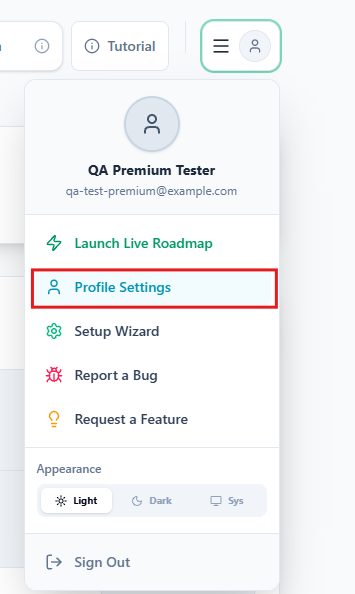
Log in to your dashboard and look at the top-right corner. Click your circular profile thumbnail to reveal the dropdown navigation panel.
Open Settings Panel
Select the **Profile Settings** option from the dropdown. This takes you to your account details and subscription preferences page.
Trigger Blueprint Export
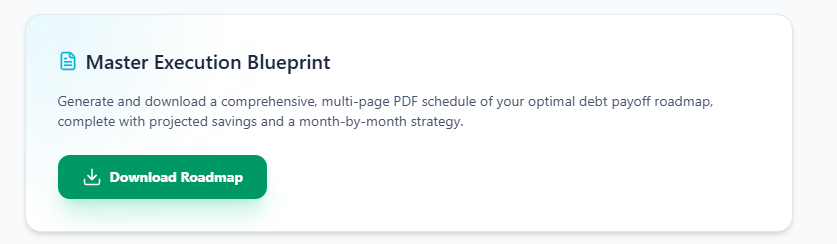
Scroll down your settings page until you reach the **Master Execution Blueprint** section. Click the **Download Roadmap** button to save a high-resolution, multi-page PDF schedule.
2. How to Record Your Payments on the Live Roadmap
Logging your actual transactions preserves calculation accuracy. Follow this step-by-step workflow each billing cycle:
Launch the Active Workspace
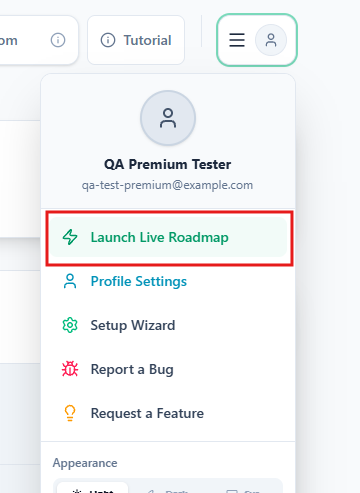
Click your top-right profile image and choose **Launch Live Roadmap** from the options to open your visual bricks board.
Expand the Active Month
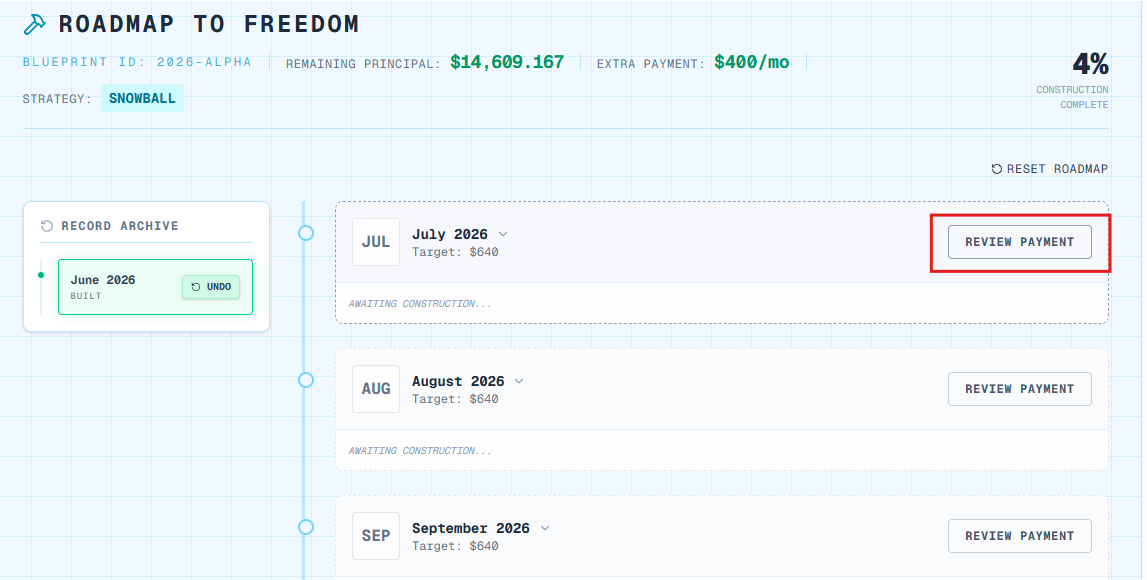
Find the current month’s brick (e.g. July) situated at the top of your stack. Click **Review Payment** on that brick to expand your transaction panel.
Confirm & Record
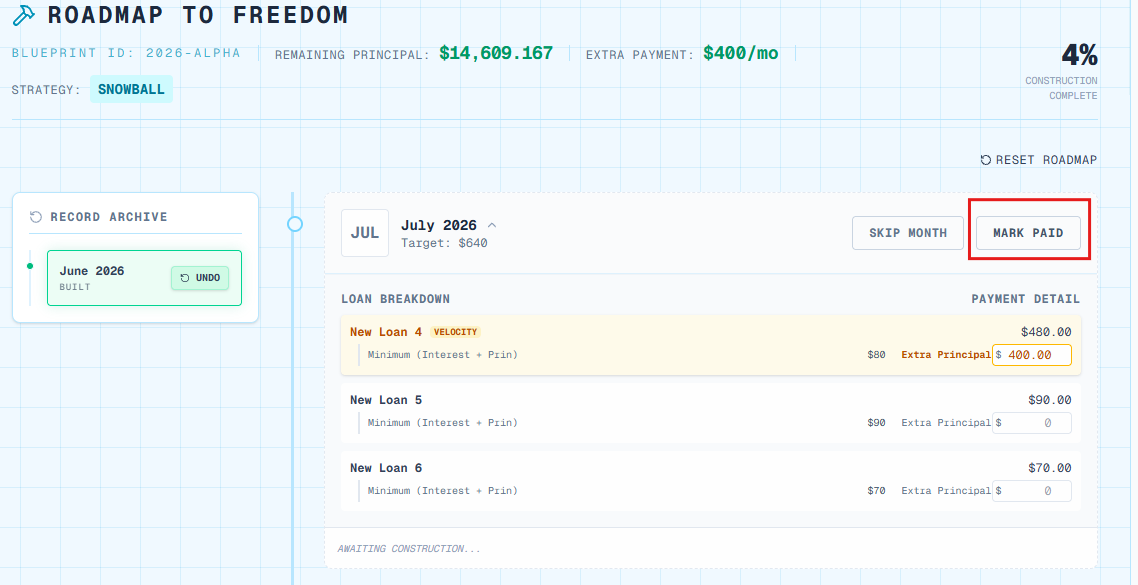
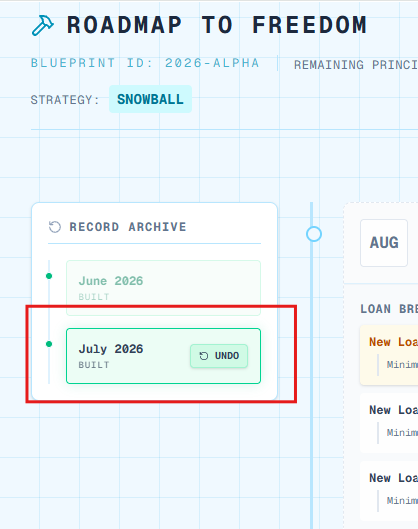
Verify that your minimum payments and velocity extra contributions are correct. Click **Mark Paid** to trigger the concrete-solidifying animation. This action automatically archives the payment on the left panel under **Record Archive**.
Frequently Asked Questions
Where do I find my historical records after marking a brick paid?
Why doesn’t the Download PDF button appear on my dashboard?
What should I do if my payment amount changes during the month?
Execute Your Plan
Stay committed. Build your roadmap block by block.
Track your progress and download your blueprint. Access your LEVEL settings dashboard today ↗